
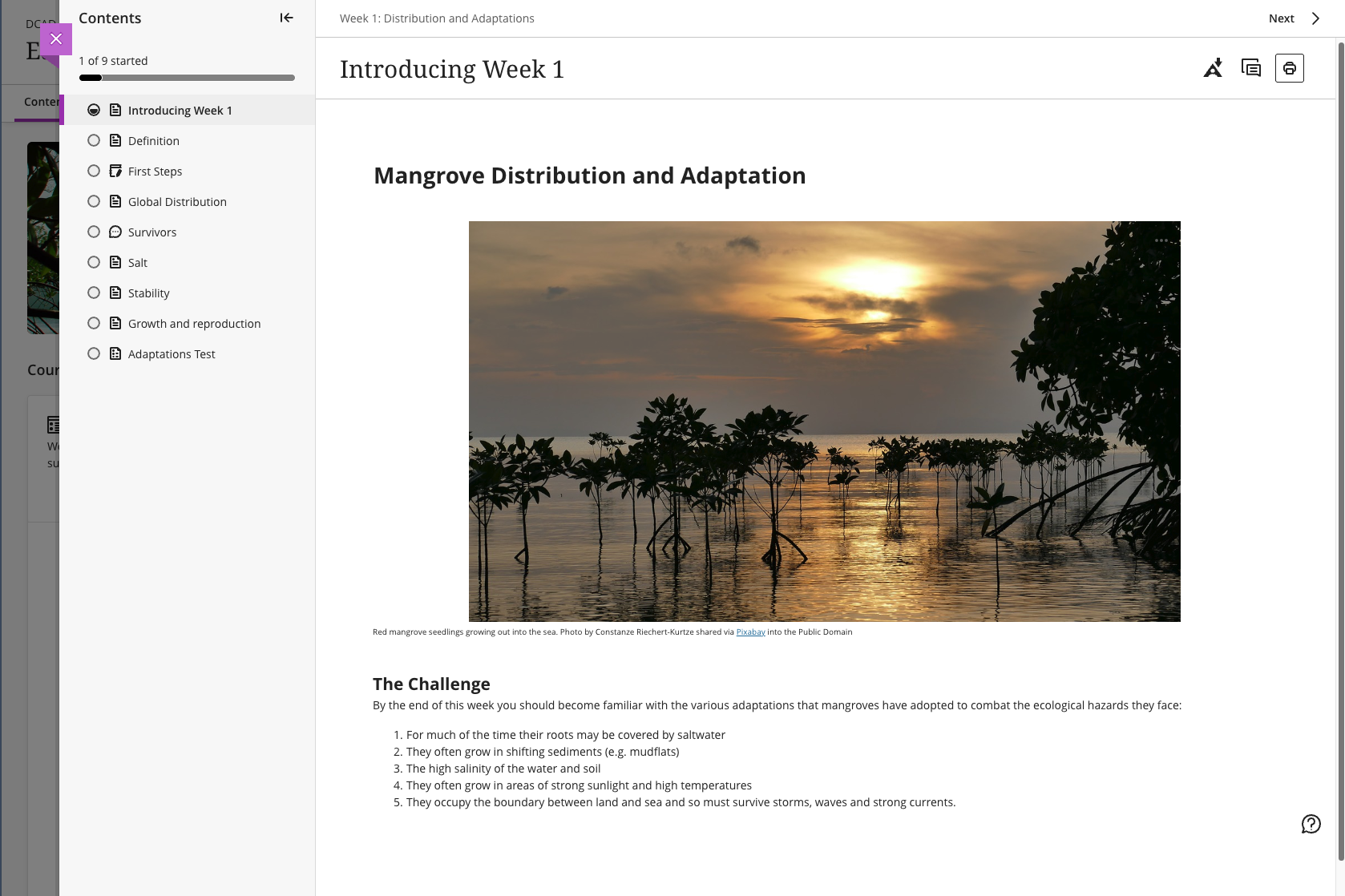
The information presented below is equally useful when producing Word documents or PowerPoint slides as well as developing Documents in Blackboard or web pages such as this.
Presenting the Content
Order
Order materials logically this is usually the order in which learners should tackle the content. This is usually a linear route, but if there are options, then make this clear and provide clear signposting, e.g. if a section may be missed in favour of another. Think about how you would structure your materials if students were asked to select one case study from three possible ones to study. It is possible to embed three files within the document which can be downloaded. This would mean they would be all in the same place. Alternatively three links could be provided to different Blackboard documents.
Use the chunk and check, break your learning materials into small manageable chunks with a check activity after each one. This could be a practice activity, discussion, quiz or Blackboard Knowledge Check question.
You may want to consider creating a Blackboard document for each chunk of learning. This makes it clear to the learners where all of the content for that topic or sub-topic can be found. For example, the Learning Module for the week may contain 3 Blackboard documents for the 3 topics within that learning module, a discussion topic and one folder for the summative assessment
Be clear in your expectations give clear instructions to the students where activities are included, include the length of time each activity should take and what the student should do, e.g. read and summarise the article for discussion in the next seminar, complete the multiple-choice test, this should take around 15 minutes.
Assessment
Clearly signpost both formative and summative assessment also indicate whether the formative assessment feeds into to the summative assessment, e.g. drafts submitted for comment will inform the final formative assessment work or a multiple choice test which is just for checking learning so far.
In many departments the formative assessment is the responsibility of the tutor and this will form part of the learning materials. Summative assessment is often managed by the Teaching and Learning teams and the assessment briefs, rubrics, etc. will be held in a separate folder.
Formatting Files and Documents
Justification
Left-justify the text. Leave the right-hand side jagged as fully justifying your text makes it difficult to read and it becomes too easy to skip a line or get lost.
Font Type and Style
Use a clear, consistent and readable font. Use a sans serif font such as Aptos, Arial or Verdana. Traditionally this would be size 11pt/12pt in a printed document, but you could use 14pt on screen to make it more readable.

Sections
Divide the learning into sections. Clearly label sections within the document. Withing the section labels indicate to the learner what they need to do. E.g. Topic Overview, Documents to Read, Videos to Watch, Discussion Activity, Knowledge Check
Use Heading Levels
Clearly indicate the main headings and sub-headings. These can easily be used to create a table of contents. Heading styles are also used by screen readers to help identify sections within the text. Look at the table of contents at the top of this page. Heading 1 has been used for the title of the page, heading 2 for the main headings of ‘Appearance’ and ‘Fonts’ and Heading Levels and heading 3 for the sub-headings ‘Justification’ and ‘Font Type and Style’.
Using Styles
Separate style from content for example, use the in-built heading styles in Word documents or CSS for html. Do not simply embolden titles or increase the font size. This appears as just more text to screen-reading software. In Word documents you will find these in the Styles group on the Home ribbon. In the text editor boxes select the heading levels from the dropdown box on the left, you may see them as H2 or Heading 2. Heading levels can also be defined in HTML.

In Blackboard documents there is less choice, as shown in the image below. At the top of the document use the Title style and beneath that there are 2 levels of header, Header corresponds to Heading 1 in the Word example above and Subheader corresponds to Heading 2 above. All other text should be in the paragraph style. This corresponds to the Normal style above.

Table of Contents
Ensure easy navigation by using a table of contents at the top of the content or hyperlinks to relevant content either within the same document or to other resources. Ensure that these links are clear to the learners.
Blackboard Documents
The following information is for the development of Blackboard Documents, however these rules should also be applied to standard Word document files too.
- Use varied paragraph lengths, the shorter the better to hold the reader’s interest.
- Break up text, include images, diagrams, videos and other types of data rather than using purely text.
- Ensure tables are easy to understand by
- Including a clear title.
- Include a header row, ensure that this is formatted as a header row style.
- Clearly label rows and columns, ensure that values are understandable, e.g. use £ to indicate currency.
- Organise the table in a clear and easy to understand way, e.g. chronological or numerical order. Placing the table near the discussion text.
- Ensure that there is a clear discussion including the major points or trends within the data in the table unless this is a task for the students, e.g. data analysis.
- Place images next to the narrative text, again making sure it is fully labelled and includes alternative text.
- Ensure that videos are transcribed and that the transcription is readily available.
- Ensure that videos have captions so these can be used by learners who need them.
- Order materials logically this is usually the order in which students should tackle the content. This is usually a linear route, but if there are options, then make this clear and provide clear signposting if a section may be missed in favour of another.
- Ensure attached files such as Word documents, Excel spreadsheets or other files adhere to the guidelines above before you upload them.
Final Checks
Once all of your content is uploaded you need to run some final checks to ensure it is accessible.
- Use the Ally tool, look through all of your content. Files which have been uploaded will have a score in the form of a coloured dial to show how accessible your files are. If this is red, you will need to go back to your original file, deal with the accessibility issues and then reupload that file. You cannot edit the files once they have been uploaded. Please check the Ally help page.
- Use the Student Preview option to view the materials from the student point of view. Information on the Student Preview mode can be found in our Quick Start Guide for Staff.
- Ensure that you have made the content Visible to students. You should also check our Blackboard Course Pre-Flight Checks help page to check everything is ready to go.